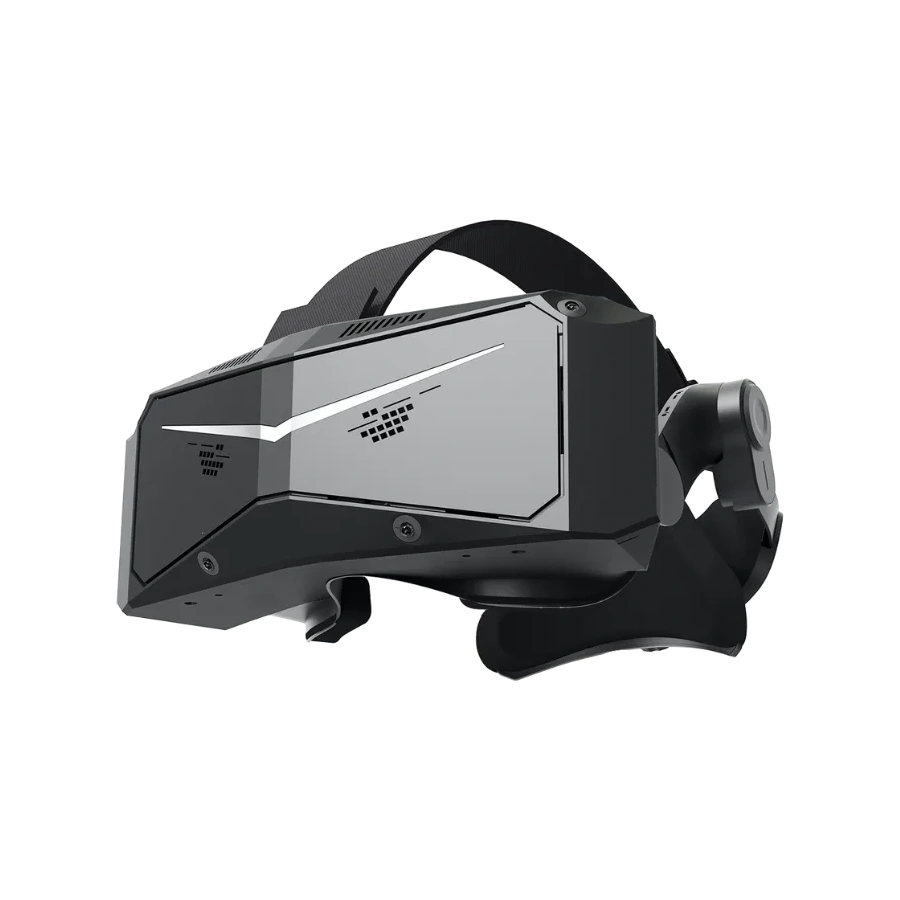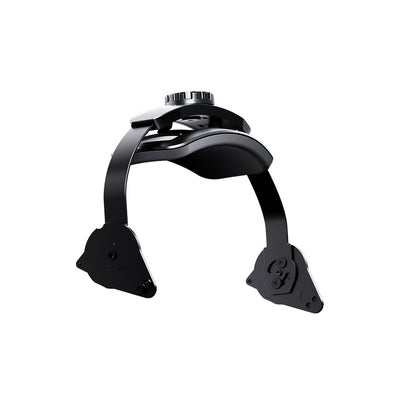
Crystal Light
Crystal Series

Crystal Light Support

Guides

Step-by-step instructions for setting up and using Crystal Light.

Before you start

Set up Crystal Light step by step

All videos on Pimax Support YouTube
Your tracking:
Step 1 of 7How to Set Up Your Pimax Headset for the First Time

More guides

All guides

FAQ

Quick answers about Crystal Light.

Troubleshooting

Something not working? Choose the area where you see the problem. Articles open in the Pimax Help Center.

Downloads and manuals

Pimax Play, firmware and the Crystal Light user manual.

Go to downloads

Specifications

Display
QLED + Mini-LED (local dimming)
Resolution
2880 × 2880 per eye
Pixel density
35 PPD
Field of view
110° horizontal
Refresh rate
72 / 90 / 120 Hz
Lenses
Glass aspheric
Tracking
Inside-out (4 cameras); Lighthouse with optional faceplate
Eye tracking
No
IPD range
58–72 mm
Weight
815 g
Connectivity
DP 1.4a + USB 3.0
Full specifications and purchase options

PC requirements

CPUs and GPUs are grouped by relative performance. Each model is listed once. Actual experience varies with games, settings, drivers and hardware.

Minimum

GPU
RTX 2070, RTX 2070 Super, RTX 2080, RTX 2080 Super, RTX 2080 Ti, RTX 3060, RTX 3060 Ti, RTX 3070, RTX 3070 Ti, RTX 4060, RTX 4060 Ti, RTX 5060, RTX 5060 Ti, RX 5700 XT, RX 6600 XT, RX 6650 XT, RX 6700 XT, RX 6750 XT, RX 7600, RX 7600 XT, RX 7700 XT, RX 9060, RX 9060 XT
CPU
i5-12400, i5-12400F, i5-12500, i5-12600K, i5-12600KF, i7-10700K, i7-11700K, i9-10900K, Core Ultra 5 225, Core Ultra 5 225F, Core Ultra 5 235, Ryzen 5 5600, Ryzen 5 5600X, Ryzen 5 7500F, Ryzen 7 3700X, Ryzen 7 5700X, Ryzen 5 5500, Ryzen 7 5700X3D, Ryzen 7 5800X, Ryzen 7 5800X3D
RAM
16 GB
Storage
5 GB
GPU IO port
DisplayPort 1.4a ×1
USB
USB 3.0
OS
Windows 10 x64 / 11

Recommended

GPU
RTX 3080, RTX 3080 Ti, RTX 3090, RTX 3090 Ti*, RTX 4070, RTX 4070 Super, RTX 5070, RX 6800, RX 6800 XT, RX 6900 XT, RX 6950 XT, RX 7800 XT, RX 7900 GRE, RX 9070 GRE, RX 9070
CPU
i5-13400, i5-13400F, i5-13600K, i5-13600KF, i5-14400, i5-14400F, i5-14600K, i5-14600KF, i7-12700K, i7-12700KF, i9-12900K, i9-12900KF, Core Ultra 5 245, Core Ultra 5 245K, Core Ultra 5 245KF, Core Ultra 5 250K Plus, Core Ultra 5 250KF Plus, Ryzen 5 7600, Ryzen 5 7600X, Ryzen 5 9500F, Ryzen 5 9600, Ryzen 5 9600X, Ryzen 7 7700, Ryzen 7 7700X, Ryzen 9 5900X, Ryzen 7 9700F, Ryzen 7 9700X
RAM
16 GB
Storage
5 GB
GPU IO port
DisplayPort 1.4a ×1
USB
USB 3.0
OS
Windows 10 x64 / 11

Best experience

GPU
RTX 4070 Ti, RTX 4070 Ti Super, RTX 4080, RTX 4080 Super, RTX 4090, RTX 5070 Ti, RTX 5080, RTX 5090, RX 7900 XT, RX 7900 XTX, RX 9070 XT
CPU
i7-13700K, i7-13700KF, i7-14700K, i7-14700KF, i9-13900K, i9-13900KF, i9-14900K, i9-14900KF, Core Ultra 7 265, Core Ultra 7 265F, Core Ultra 7 265K, Core Ultra 7 265KF, Core Ultra 7 270K Plus, Core Ultra 9 285, Core Ultra 9 285K, Ryzen 7 7800X3D, Ryzen 7 9800X3D, Ryzen 7 9850X3D, Ryzen 9 7900, Ryzen 9 7900X, Ryzen 9 7900X3D, Ryzen 9 7950X, Ryzen 9 7950X3D, Ryzen 9 9900X, Ryzen 9 9900X3D, Ryzen 9 9950X, Ryzen 9 9950X3D, Ryzen 9 9950X3D2 Dual Edition
RAM
32 GB
Storage
10 GB
GPU IO port
DisplayPort 1.4a ×1
USB
USB 3.0
OS
Windows 10 x64 / 11

* RTX 3090 Ti: some headset and connection combinations may have DisplayPort connection issues. If you have a connection problem, contact our support team.

Full compatibility guide

Accessories

Compatible accessories and how to install and care for them.
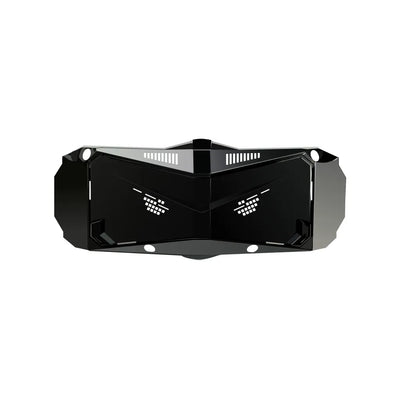
Warranty and service

Headsets are covered for 12 months from the date you receive or activate them, whichever is later. If the headset is not activated within 10 days of receipt, the warranty starts from the date of receipt. Controllers and base stations included in the box have the same period. Accessories are covered for 6 months from the date of receipt. Extended warranty is available in Pimax Play within 30 days of activation and covers the headset main unit. Where local laws set a different warranty period, local law applies. Check your warranty status in Pimax Play with the headset connected.

Still need help with Crystal Light?

For headset issues, use Pimax Play. Run Device Diagnostic, then submit a ticket from the results screen. Your system info and log are attached automatically. You can also reach us through Live Chat in Pimax Play.

How to Create a Support Ticket and Export a Log